











When a dish sells out or a price changes, guests may still be looking at the menu on their phones. For an independent restaurant or café, the challenge is not only making the change; it is making sure the right person confirms it, the digital menu is updated, and the front-of-house team knows what to tell guests.
A repeatable routine can make these small changes easier to manage during service. It gives staff a clear path from noticing a change to checking that the menu reflects it, without relying on someone to remember every detail later. Here is a practical approach to update a restaurant QR menu when dishes change.
1. Decide who can confirm a dish or price change

Start by agreeing who is allowed to confirm that an item is unavailable or that its price should change. In a small team, that might be an owner, a shift lead or another person already responsible for the relevant decision. The important point is that staff know who has the final say, especially when the person editing the menu is not the person who decides what the kitchen can serve.
Make the handoff simple. A team member who learns that a dish has sold out should tell the designated person, rather than assuming that someone else has already updated the menu. Likewise, if a price needs correcting, confirm the intended price with the person responsible before making an edit. This helps avoid uncertainty about whether a change is temporary, final or still being checked.
It can help to use a short, consistent message that names the item and the change. For example: “The mushroom tart is unavailable for the rest of service,” or “Please confirm the price for the house lemonade.” The message is not a substitute for approval; it makes the decision that needs attention easier to identify.
2. Check the current item and availability information
Before editing, find the item on the current digital menu and compare it with the confirmed information. Check the dish name and the specific detail that needs changing. If the issue is availability, clarify whether the item is unavailable for the moment or for the rest of the service. If it is a price change, confirm the new price rather than relying on memory or an old note.
This quick check is useful when similar dishes, sizes or variations appear on the menu. It also helps prevent a well-intended edit from being applied to the wrong item. If anything is unclear, pause and ask the person who confirmed the change. A brief clarification is preferable to leaving guests and staff with conflicting information.
Keep the update focused. Change the dish, price or availability information that has actually been confirmed, and avoid making unrelated edits at the same time. When service is busy, a narrow change is easier to review and explain. It also gives the team a clear answer if a guest asks what changed.
3. Update the digital menu promptly and review it on a phone
Once the change is confirmed, update the digital menu promptly. A QR menu is particularly useful here because a menu change can be made without reprinting paper copies. Suite.coffee’s QR Menu lets restaurants and cafés publish a digital menu behind a QR code and update dishes, prices and availability. Guests can view the menu on a mobile device without installing anything.
After editing, open the menu on a phone and check the affected item in the same kind of view a guest uses. Confirm that the change is visible, the item is easy to understand and its price or availability information is clear. A preview on a larger screen may not show exactly how the menu reads on a smaller one, so a phone check is a practical final step.
Do not assume that saving an edit means every detail is right. Read the item as a guest would: Is it obvious which dish the note refers to? Is the price shown alongside the correct item? If a dish is unavailable, does the wording avoid suggesting it can still be ordered? This check is about clarity, not adding extra explanations that the team has not confirmed.
4. Tell front-of-house staff what changed and when
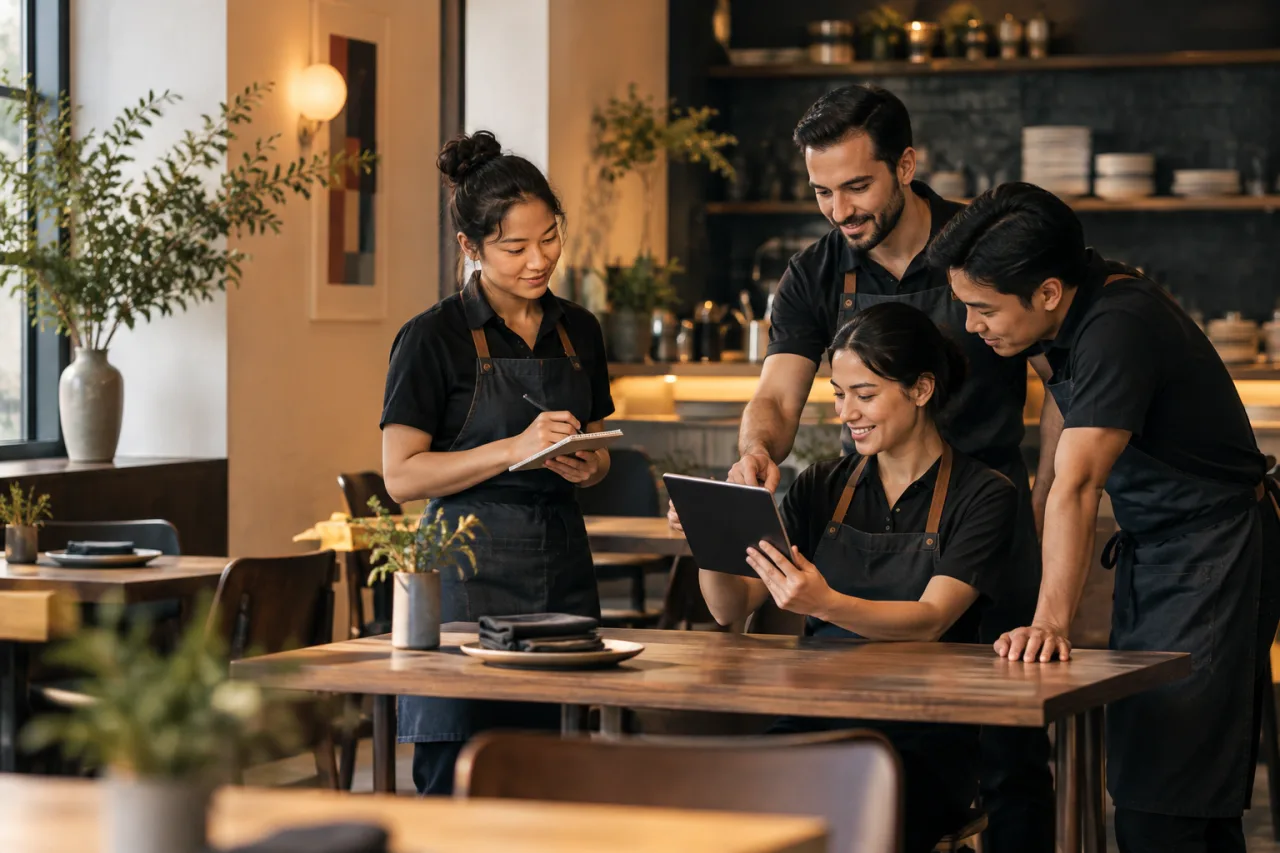
Updating the digital menu does not automatically inform the people speaking with guests. Once the menu has been reviewed, tell the front-of-house team what changed and when the update applies. Keep the briefing specific: name the dish or price, state the confirmed availability, and let staff know if the change is temporary or intended to remain in place.
This step gives staff a consistent way to answer questions and reduces the chance that someone offers an unavailable dish based on an earlier understanding. It also creates an opportunity to spot a mismatch. A team member may know, for example, that the kitchen has resumed serving an item or that a price confirmation needs another look. If new information emerges, send it back through the same confirmation process rather than making an unverified change.
For a small team, the update can be part of the normal shift handoff or a quick verbal briefing. The useful habit is not a particular tool or meeting format; it is making sure the people serving guests receive the same confirmed information that went onto the menu.
5. Use an end-of-service review to catch outdated information
At the end of service, review the changes made during the shift. Check whether any availability notes were temporary and should be revisited, whether a price update remains correct, and whether an item that was unavailable can be offered again. Confirm any open questions with the appropriate person before changing the menu back.
This review matters because some changes are only true for a portion of a day. An item that sold out at lunch may be available later, while another may remain unavailable. Without a clear check, temporary wording can stay on a QR menu after circumstances have changed. The goal is not to make an assumption about what should happen next; it is to identify what needs confirmation and then update accordingly.
A short, consistent check is often easier to maintain than trying to reconstruct changes after several shifts. It can also flag menu information that was missed during service. If the change history is not written down, a simple shift note naming the item and the question to confirm can help the next responsible person follow up. Keep the note factual and remove uncertainty only when it has been resolved.
A simple routine your team can repeat
In practice, the process is straightforward: identify the person who can confirm a change, verify the exact dish or price, update the digital menu, review it on a phone, brief front-of-house staff and check temporary changes at the end of service. Each step addresses a different source of confusion: unclear authority, the wrong item, an incomplete edit, a poor mobile reading experience, or staff working from outdated information.
Try the routine with one change at a time and make it easy for the team to remember. If a step regularly gets missed, clarify who owns it during that shift. The point is not to add a complicated procedure; it is to give a changing menu a reliable path from confirmed information to what guests see.
Conclusion
Keeping a QR menu current is a team routine as much as an editing task. When someone confirms the change, someone checks the result, and staff share the same information, guests are more likely to see a menu that reflects what the restaurant can offer. See whether Suite.coffee’s QR Menu fits your restaurant’s menu-update routine.