










Build a short, recognisable hierarchy that helps visitors find products quickly.
Before you start
- Create the destination menu.
- Agree on customer-facing category names and order.
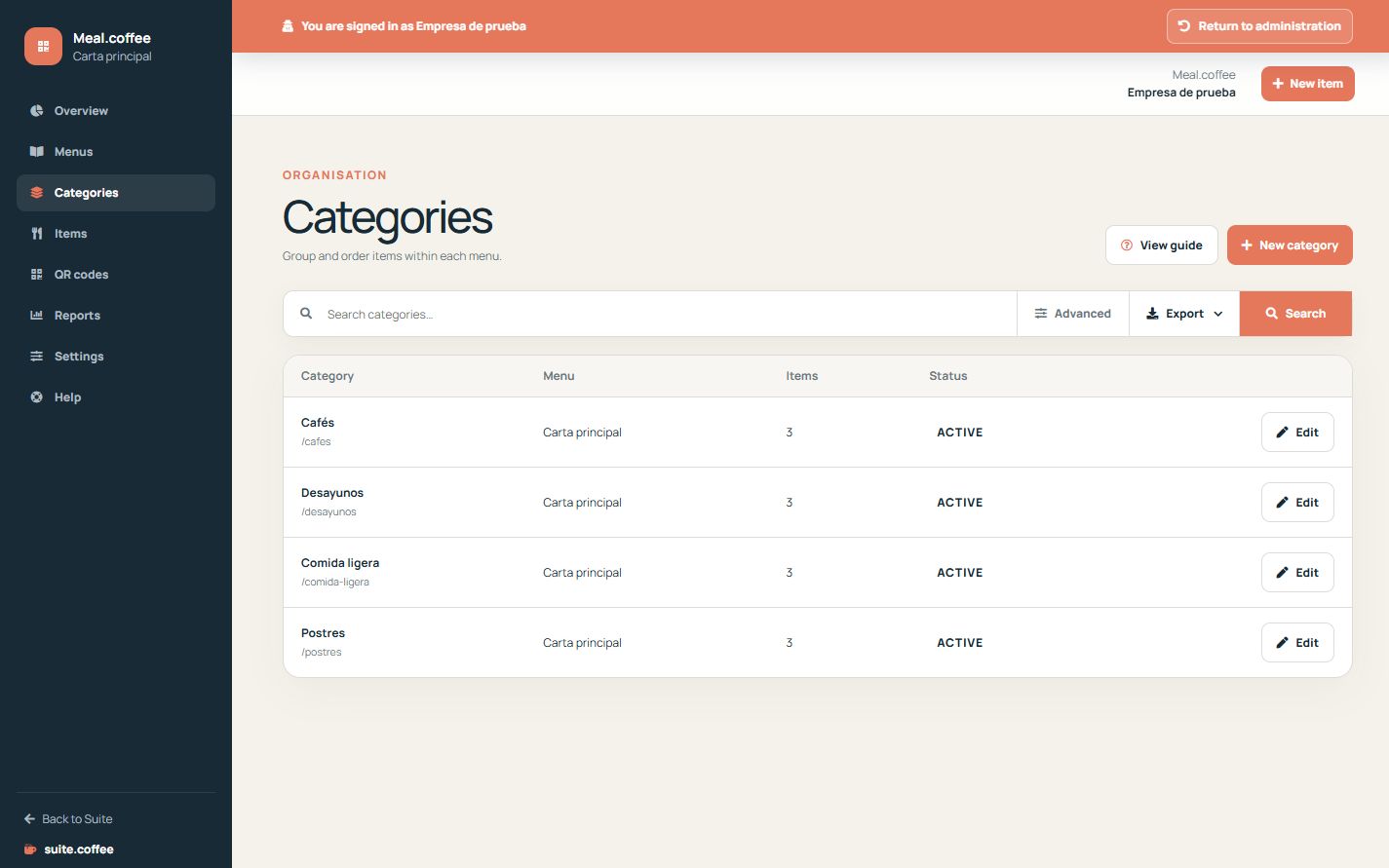
Place the category in a menu
Each category belongs to one menu and has its own unique slug within that menu. Use names customers recognise, such as Starters, Drinks or Desserts.
Order and activate it
Sort order controls its public position. An inactive category is excluded from the public menu even if its products remain active.
Keep descriptions useful
Add a short description only when it clarifies the group. Edit each required language explicitly so customers do not depend on internal catalogue wording.
Step by step
- Open Categories and search for an existing group.
- Create a category inside the correct menu.
- Enter its translated name, slug and optional description.
- Set its position with the order field and keep it active when ready.
- Review the list and open the public menu to confirm placement.
Final check
- Categories are not duplicated across the same menu.
- Order follows the customer journey.
- Inactive groups do not expose their products publicly.
Tip: Prefer a few clear categories over a deep or repetitive catalogue structure.