










Review the public menu as a visitor on mobile and desktop before distributing its URL or QR.
Before you start
- Publish the menu and its content.
- Prepare every language you intend to expose.
Test the customer journey
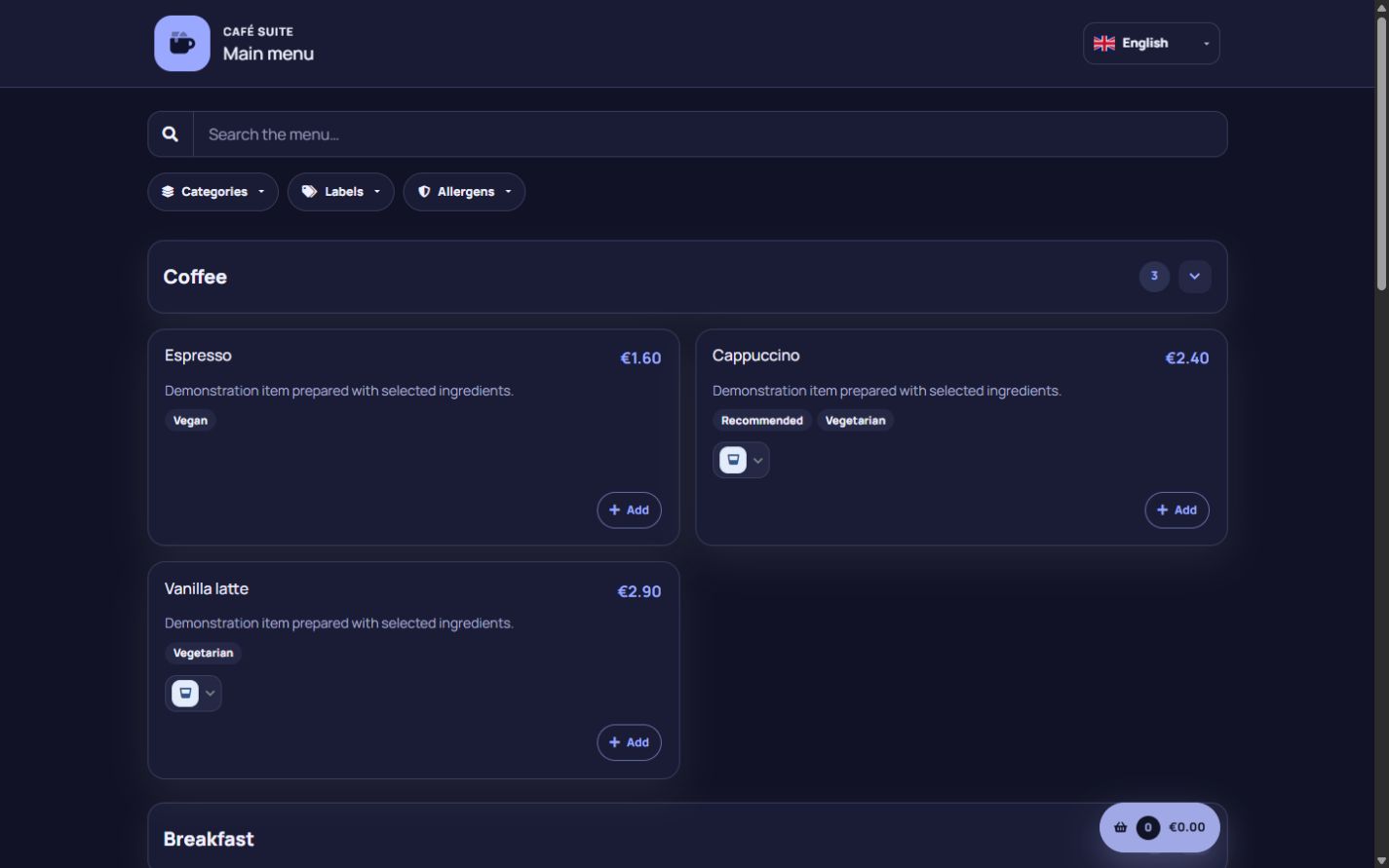
Open the public menu in every offered language and check name, categories, products, prices, tax notice, images and allergen visibility. Download the localised PDF as a second presentation of the same available menu.
Understand search and filters
Category selection, dietary labels and allergen exclusions combine locally in the visitor’s browser. Labels require every selected value; allergen filters hide products containing any selected allergen.
The personal list is not an order
Visitors can add available products and quantities to a list stored in their browser. It is only a personal tracker: it is not sent to the establishment, creates no reservation or order and starts no payment.
Step by step
- Open the public menu from the overview.
- Change language and review the title, categories, products and notices.
- Try search, category, dietary and allergen filters.
- Add products to the personal list and verify quantities and total.
- Download the localised PDF and compare it with the page.
Final check
- Only active, available content is visible.
- Filters produce the expected compatible products.
- The page makes clear that the personal list is not an order.
Tip: Test the same QR with a real phone; public usability matters more than the administration view.