










Keep every item accurate enough for customers to decide without asking staff for basic details.
Before you start
- Create at least one category.
- Verify price, ingredients, dietary labels and allergens.
Complete the customer-facing record
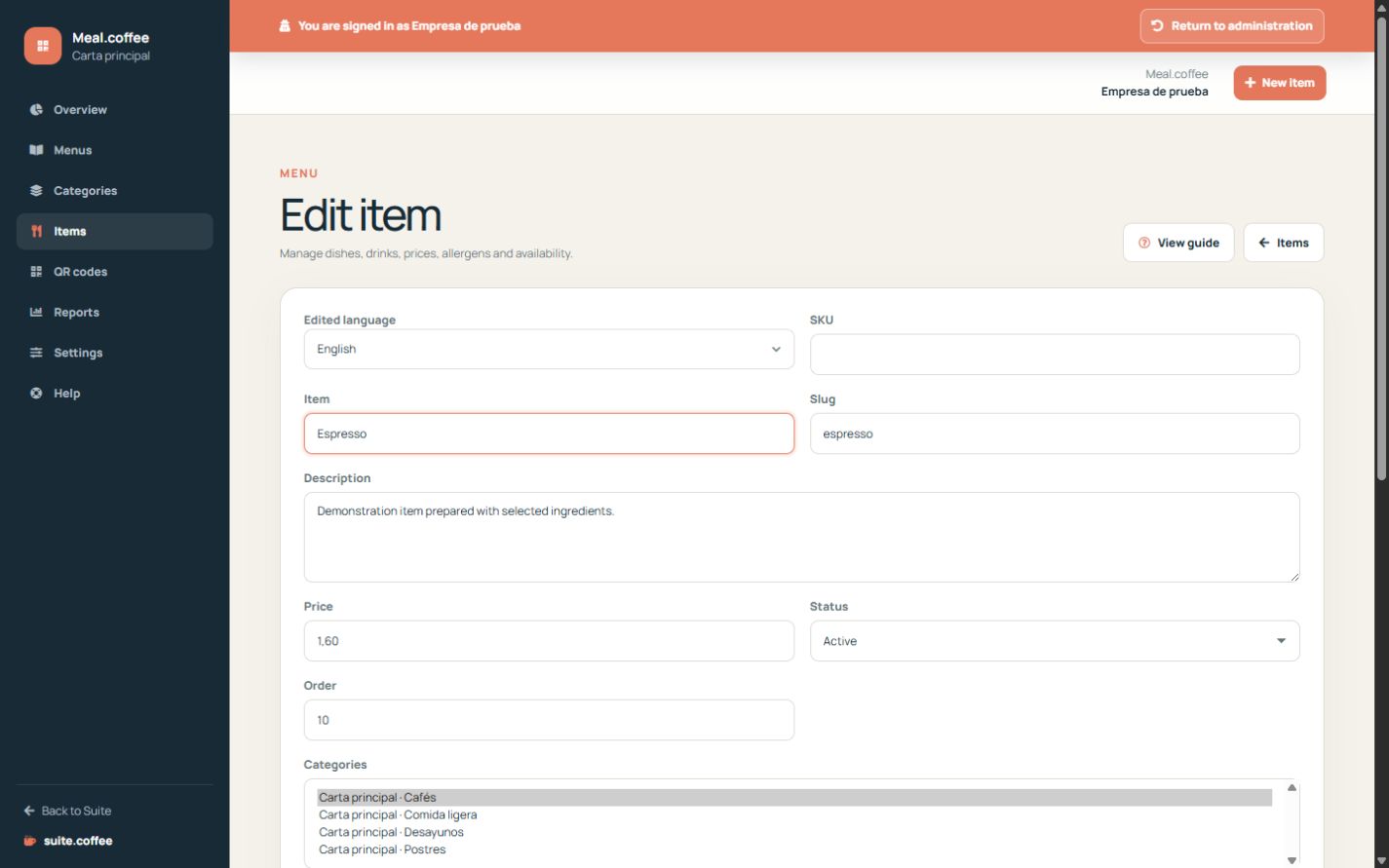
Choose at least one category and enter name, description, price and optional image with meaningful alternative text. The product can belong to more than one category.
Describe dietary information accurately
Select only labels and allergens that have been verified for that product. These values drive the public compatibility filters; they are product information, not an automatic guarantee for individual dietary needs.
Use the correct status
Active makes the product available, Sold out keeps it visible but prevents adding it to the personal list, and Hidden removes it publicly. A plan-suspended product retains its data but cannot be published until capacity is restored.
Understand price snapshots
The product stores the Meal currency at creation or update. Changing the instance currency does not convert existing prices automatically.
Step by step
- Open Items and create or edit an item.
- Choose the edited language and complete name, description and image alternative text.
- Enter price, status and at least one category.
- Select only verified dietary labels and allergens.
- Save and use sold out or hidden according to the real operational state.
Final check
- Price and currency are correct.
- The item appears in every intended category.
- Labels and allergens have been checked against the actual product.
Tip: Sold out keeps the item visible; Hidden removes it from the public menu. Use the state that tells the truth.